A quick tour

What Tape looks like

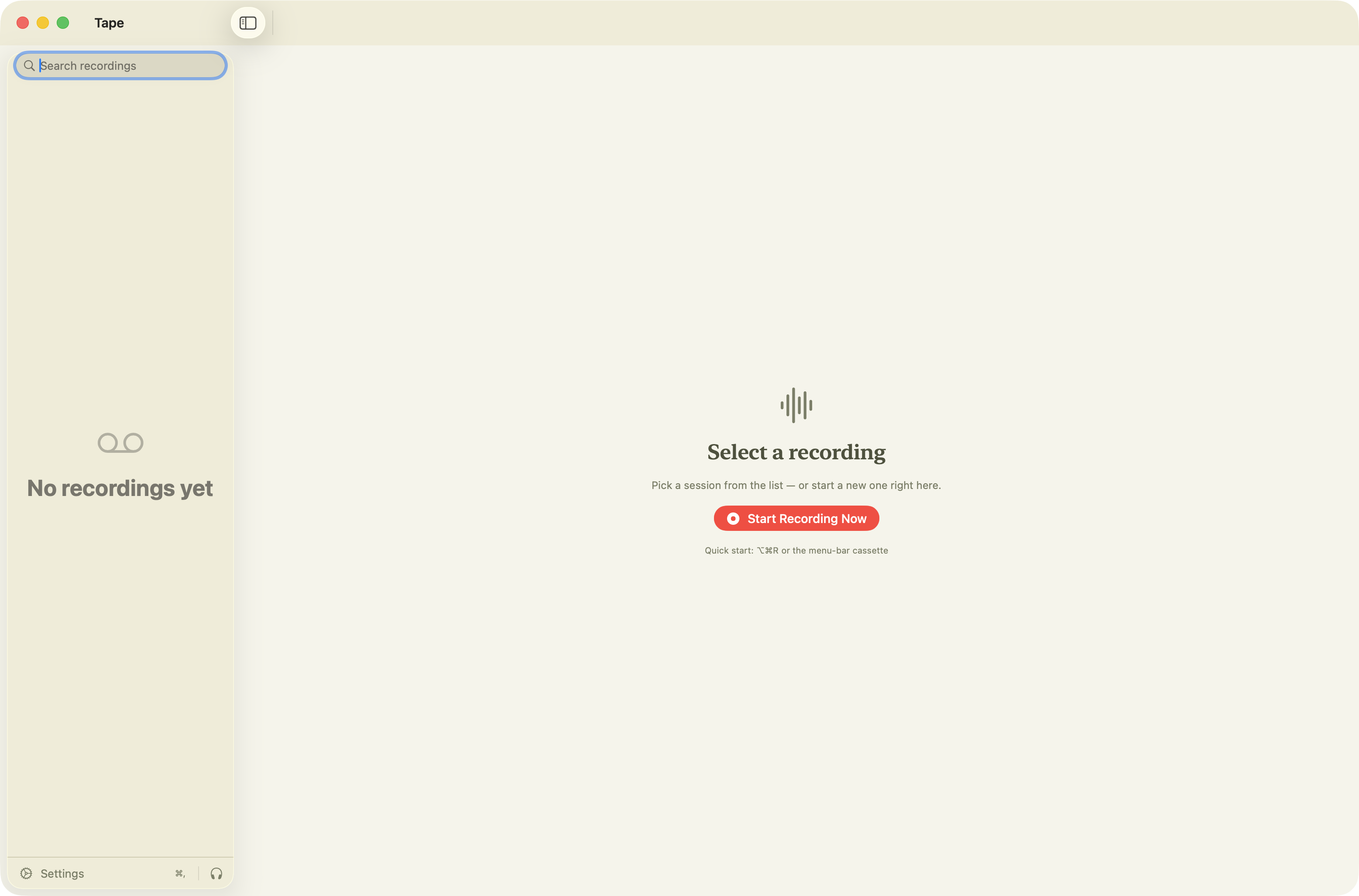
Four screens cover the whole app: the transcript you can listen to, the summary and chat, the library, and the settings where you choose your models.
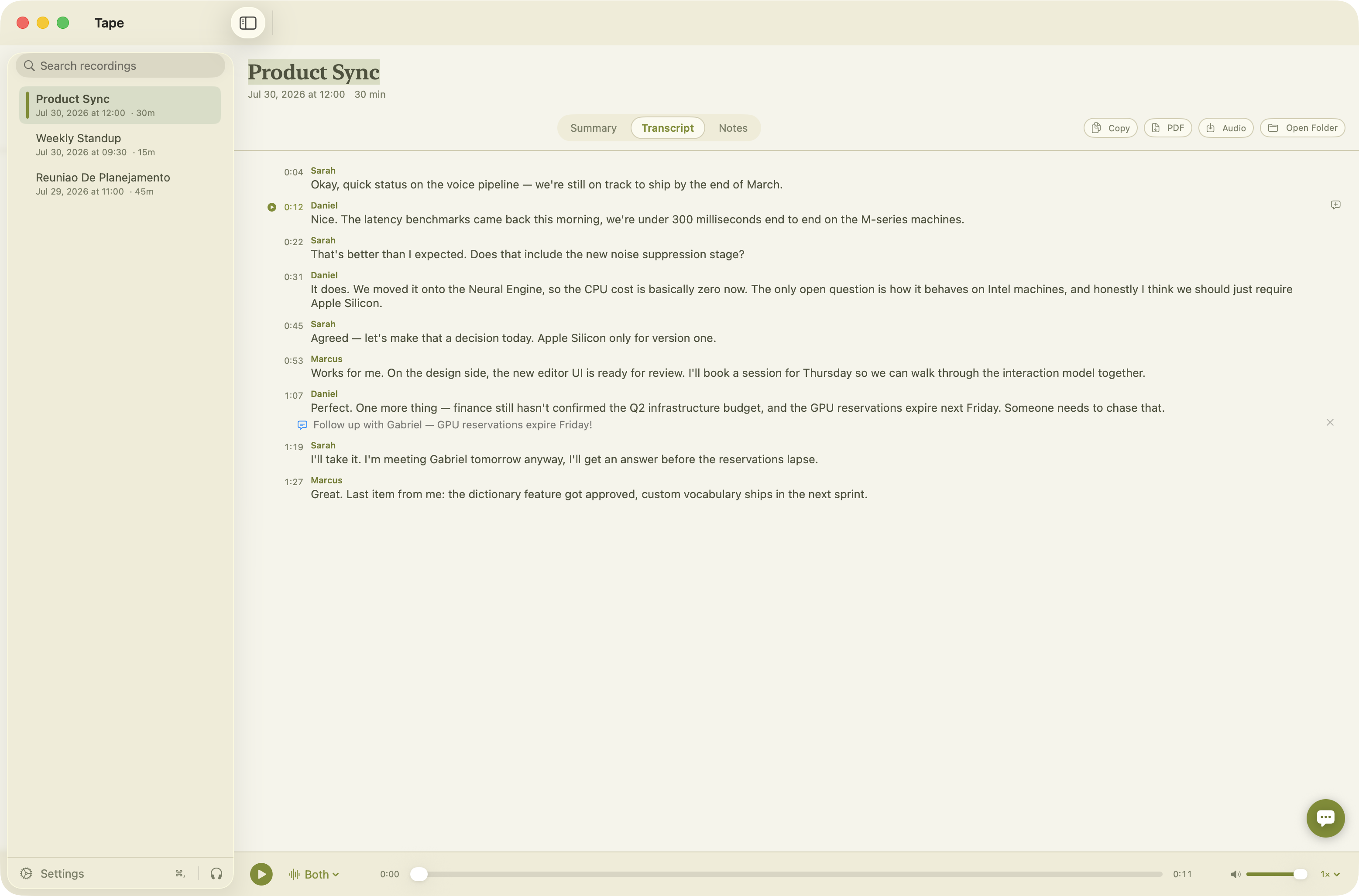
Tape's main window showing a meeting transcript with speaker names, timestamps and an anchored comment
The transcript. Every line knows its place in the audio, so clicking a sentence jumps playback there and the playing segment stays highlighted. Speakers are separated automatically: your microphone is you, the Mac's audio is everyone else. Hover a line to pin a comment to that exact second, or right-click to send that moment to the AI.
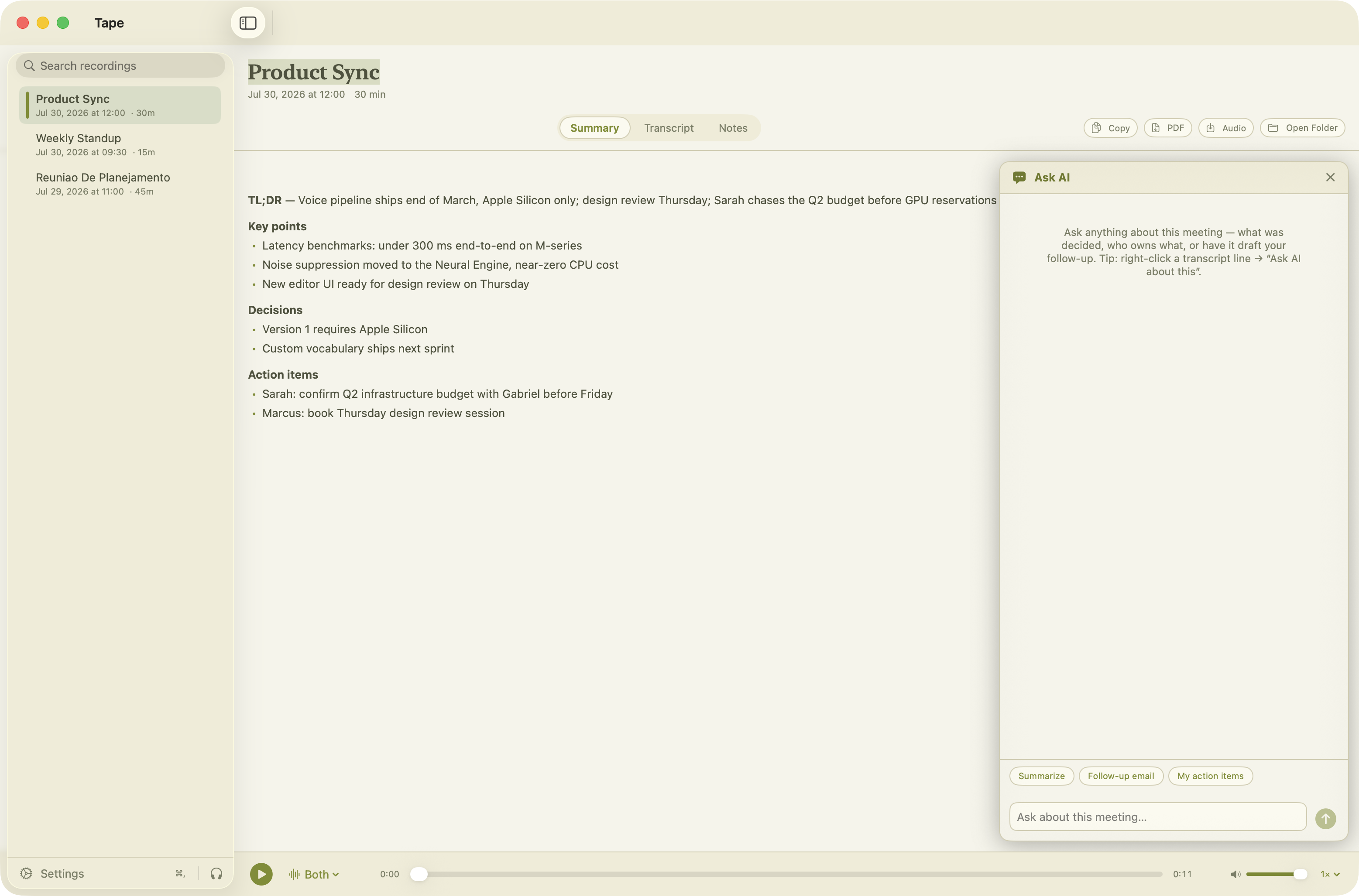
The summary tab with the Ask AI chat panel open next to it
Summary and Ask AI. When transcription finishes, a local Gemma 4 model writes the TL;DR, key points, decisions and action items on its own. The chat panel answers follow-up questions about the meeting, drafts the follow-up email, and pulls out what was assigned to you. It replies in the language that was spoken, or in one you pick.
The Tape library with recordings listed in the sidebar
Your library. Every recording in one searchable sidebar, with notes and comments alongside each meeting. Rename in the app or in Finder, whichever you feel like: the folder on disk is the database, and the two stay in sync.
Tape settings showing the models tab with installed models and their sizes
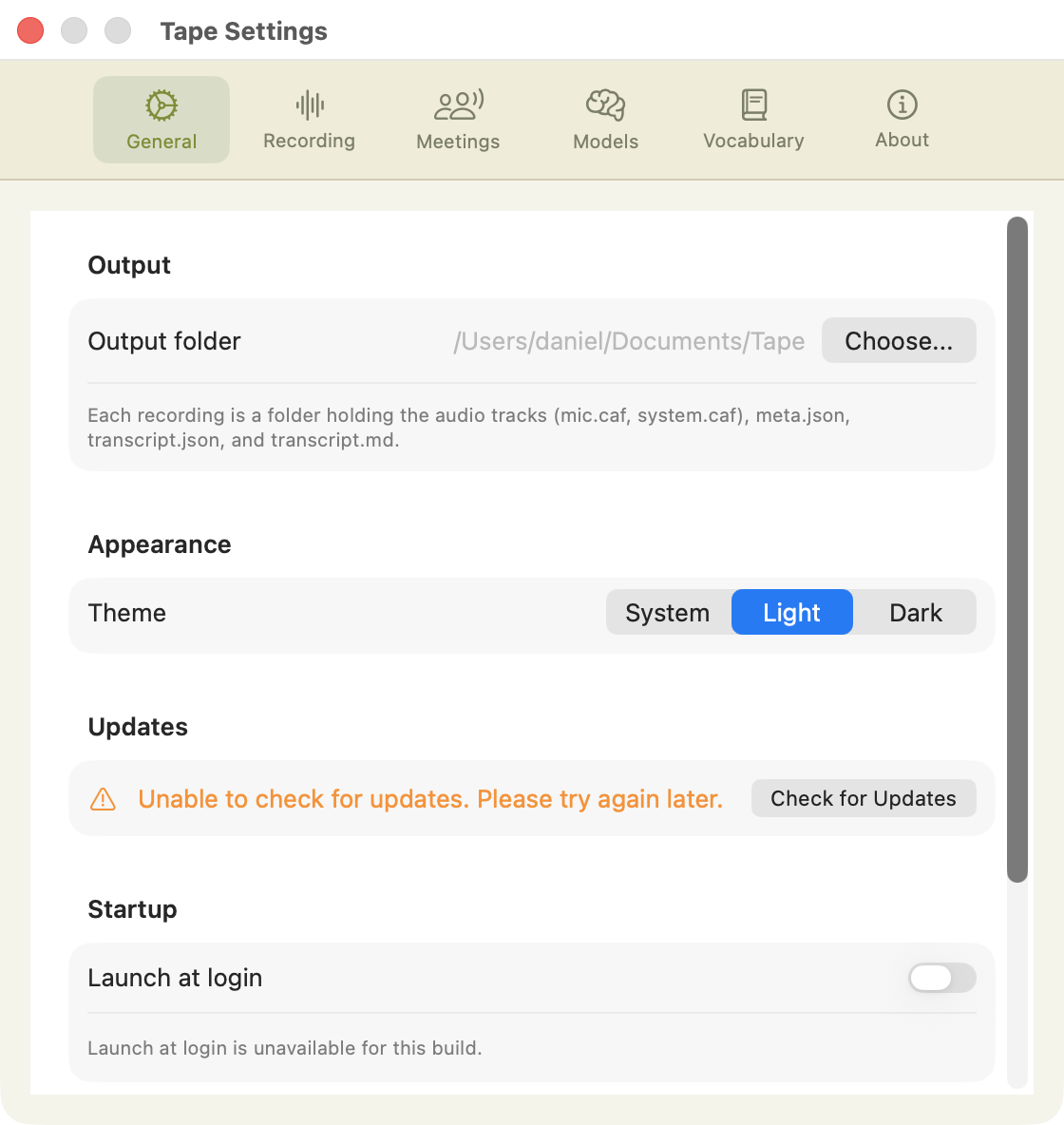
Settings. Choose the transcription engine and language, the summarization model, how much of a long meeting the AI gets to read, and which meeting apps trigger detection. The Models tab lists everything on disk with its real size, so you can add and remove models as you like.

See it on your own meetings

Free, no account, nothing leaves your Mac.

⬇  Download for macOS

macOS 15+ · Apple Silicon · ~15 MB